
LTO Online Appointment Booking: LTMS Scheduling, Reschedule & Cancel Guide
Booking an LTO appointment used to mean lining up outside a district office before sunrise. Now, most transactions license renewal, student permits, vehicle registration, and more go through the LTMS Portal, where you can pick your branch, date, and time slot from your phone or computer.
This guide covers exactly how to book, reschedule, and cancel an LTO appointment online, plus the timing rules that determine whether you actually land the slot you want. Access complete vehicle registration guides, driver’s license applications, and tracking tools by visiting the main LTO Trackers portal.
What Is the LTMS Portal
The LTMS Portal is the Land Transportation Office’s official online system for managing licensing and vehicle-related transactions. Beyond appointment booking, it also handles license renewal applications, the CDE and TDC exams, violation payments, and access to your driving records. Appointment booking sits at the center of most transactions, since almost every in-person LTO visit now requires a confirmed slot booked in advance.
Why Book Instead of Walking In
Most Metro Manila LTO offices no longer accept walk-ins the way they once did, and even branches that do typically give priority to motorists with a confirmed appointment. Booking ahead means you’re guaranteed a spot on that day’s list, you can prepare your documents in advance, and you avoid the multi-hour queues that used to be standard at busy district offices.
How to Book an LTO Appointment Online
Step 1: Log Into the LTMS Portal
Go to the official LTMS Portal at portal.lto.gov.ph and sign in with your registered account. If you haven’t created an account yet, you’ll need to register first using your personal details and a valid ID before you can book anything.
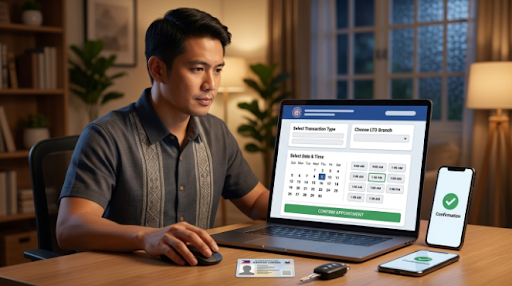
Step 2: Select Your Transaction Type
Choose the specific service you need license renewal, student permit application, vehicle registration, or another available transaction. The system will only show branches and slots relevant to that transaction type.
Step 3: Choose Your Branch and Date
Pick the LTO district office you want to visit, then browse the available dates. Slots are limited and tied to each branch’s daily capacity, so availability varies significantly depending on how busy that office typically is.
Step 4: Select a Time Slot
Once you’ve picked a date, choose from the open time slots for that day. Each slot represents a specific window during which you’re expected to arrive.
Step 5: Confirm and Save Your Confirmation Code
After confirming your booking, the portal generates a confirmation code or reference number. Save this you’ll need it to check in at the branch, and it’s also required if you want to reschedule or cancel later.
The Weekly Slot Release Schedule
Understanding when new slots open up is the single most useful piece of information for booking successfully, especially at high-demand branches.
New Slots Release Every Monday
The LTMS Portal typically releases a new batch of appointment slots every Monday at midnight, Philippine time, covering the following seven days. You generally cannot book more than a week in advance, which means the release window is your main opportunity to grab a specific date at a popular branch.
High-Demand Branches Fill Up Fast
Busy Metro Manila district offices can fill their newly released slots within hours of going live. If you have your sights set on a specific high-traffic branch, being logged in and ready right at midnight on Monday significantly improves your odds.
Provincial Branches Tend to Have More Availability
Offices outside major metro areas generally see less demand, so it’s often possible to book several days ahead without much difficulty. If your preferred branch is fully booked, checking a nearby provincial office may get you in sooner.
Learn how to create and access your LTMS account with our guide to LTO portal login and registration.
Tips for Securing a Slot at a Popular Branch
Be Ready Before Midnight
Log into the portal and have your transaction details ready before the Monday release window opens, rather than trying to navigate the site for the first time after slots have already started disappearing.
Refresh at the Exact Release Time
Slots for the most in-demand branches can disappear within the first few hours of release, so refreshing right at midnight rather than checking later that morning gives you the best chance.
Expand Your Search to Nearby Branches
If your first-choice branch shows nothing available, try neighboring districts. The transaction itself can usually be completed at any LTO office equipped to handle it, not just the one closest to you.
Try Mid-Week Time Slots
Early-week and weekend slots tend to go first. Checking availability mid-week can sometimes turn up openings that were passed over by other users.
Track the availability status of your vehicle’s physical license plate through our guide on how to check your LTO plate number.
How to Reschedule an LTO Appointment
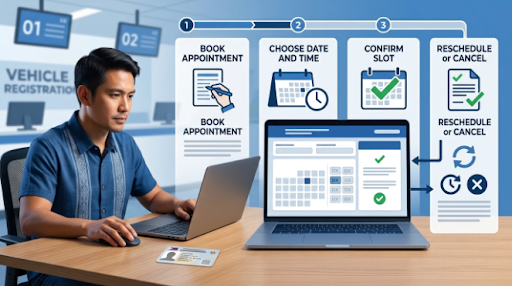
Step 1: Log Into Your Account
Sign in to the LTMS Portal using the same account you used to book the original appointment.
Step 2: Locate Your Existing Appointment
Go to your list of transactions or appointments and find the specific booking you want to change.
Step 3: Cancel the Current Slot
In most cases, rescheduling means canceling your existing appointment first, since the system doesn’t always support directly moving a booking to a new date without freeing up the old slot.
Step 4: Book a New Slot
Once your original appointment is canceled, go through the standard booking flow again to select a new date, time, and branch.
Rescheduling Is Free
There’s generally no fee for rescheduling an LTO appointment you only pay the actual transaction fees (license, medical, exam, or registration costs) once you complete your visit, not for adjusting the booking itself.
Review step-by-step renewal and application requirements in our breakdown of the LTO driver’s license process.
How to Cancel an LTO Appointment
Step 1: Open Your Transactions List
Log into the LTMS Portal and go to the Transactions or Appointments section of your dashboard.
Step 2: Select the Appointment to Cancel
Click on the specific open appointment you no longer plan to attend.
Step 3: Choose Cancel Appointment
Confirm the cancellation. This releases the slot back into the pool so other motorists can book it.
Cancel at Least 24 Hours in Advance
Try to cancel at least a day before your scheduled slot. Canceling the same day, or simply not showing up, can affect your account standing and may temporarily limit your ability to book future appointments.
Lost or damaged your plates? Find out how to monitor your replacement request with LTO replacement plate tracking.
What Happens If You Miss Your Appointment
Late Arrivals May Still Be Accommodated
Arriving within roughly 30 minutes of your scheduled time is often still workable, depending on how long the queue is that day.
No-Shows Can Affect Future Bookings
Missing your slot entirely without canceling is generally treated differently than a proper cancellation, and repeated no-shows can flag your account or limit your booking privileges going forward.
Rebooking After a Missed Slot
If you miss an appointment, you’ll typically need to go through the standard booking process again for a new date, subject to the same availability rules as any other booking.
Resolve database lookup errors using our troubleshooting guide on how to fix ‘not found’ LTO plate status.
Common Issues When Booking or Managing Appointments
No Slots Showing at Your Preferred Branch
This usually means the branch’s slots for that period are already full or temporarily closed due to high demand. Try checking right at the Monday release, or expand your search to include nearby branches.
Portal Errors or Slow Loading
Heavy traffic on the portal, especially right around the Monday slot release, can cause temporary loading issues. Waiting a few minutes and refreshing, or trying again later in the day, often resolves this.
Confirmation Code Not Received
If you don’t receive your confirmation email or code, check your account dashboard directly, since the booking is usually still recorded there even if the notification itself didn’t go through.
Locked out of your LTMS profile? Regain access quickly by following our instructions on how to retrieve LTO portal account.
Final Thoughts
Booking, rescheduling, and canceling an LTO appointment through the LTMS Portal is designed to be straightforward once you understand the timing rules behind it. Slots release weekly, popular branches fill quickly, and both rescheduling and cancellation are free as long as you act with enough notice. Keeping your confirmation code handy, checking availability at the right time, and canceling early if your plans change will help you avoid the account flags that come with no-shows and get your LTO transaction done with as few trips as possible.

