
LTO Portal Account Recovery: Reset Password & Email 2026
You are about to renew your driver’s license online. You open the LTO portal login page, type in what you think is your password, and nothing happens. You try again. Still nothing. Maybe you forgot the email you used. Maybe you never wrote down your LTO Client ID. Now you are stuck, and your renewal deadline is not moving.
The LTO LTMS portal is not something most people log into every day, so it is easy to forget the details. And when you need it, you really need it. Regaining access to your motoring profile is the first step to utilizing the services detailed on LTO Trackers.
This guide walks you through every recovery option available, from resetting a forgotten password to contacting LTO directly for email and Client ID retrieval. We also cover what to do if recovery fails completely. If you are regularly using the LTO public portal for renewals, registrations, or violation tracking, bookmark this page so you have it ready when you need it.

What Is the LTO LTMS Portal?
The LTO LTMS portal serves as the official website for the Land Transportation Office. On this site, drivers and owners can renew their licenses, register their vehicles, settle their fines, and complete other transactions from the comfort of their homes, without needing to visit an LTO branch.
The correct term for this platform is the Land Transportation Management System. It operates through the official LTO online portal website. In order to access any of its functions, one must create an account with an email verification and LTO Client ID.
If you are familiar with how the platform works and only needs help with recovering your account, proceed directly to the following steps.
How to Recover Your LTO Portal Account
Recovering a Forgotten Password
This is the easiest fix. If you remember the email address linked to your account, or you have your LTO Client ID, you can reset your password in a few minutes.
- Open the LTO LTMS portal login page
- Click the “Forgot Password” link below the login fields
- Enter either your registered email address or your LTO Client ID
- Reset Password Email Sent
- Follow instructions to change your password
- Login with your new credentials
Some things to note about changing your password. Your reset password email may take a few minutes to arrive. After ten minutes, if you have not received it, be sure to check your spam folder first.
Second, you will need to ensure that your new password follows your institution’s security requirements. This often includes at least a combination of uppercase letters, lowercase letters, numbers, and special characters.
Lastly, if you have waited more than ten minutes and you have checked your spam, but still have not received an email, it may be that the email address registered with your account is an old one and you have no access to it anymore.
1. Recovering a Forgotten Email Address or LTO Client ID
Here comes the slightly complicated part. When you don’t remember either your email or your Client ID, there is nothing else you can do but contact LTO personally through email or in person.
Option 1: Submit a Request for Recovery via Email
This is your best choice if you can’t visit the nearest LTO office anytime soon. Things you should bring:
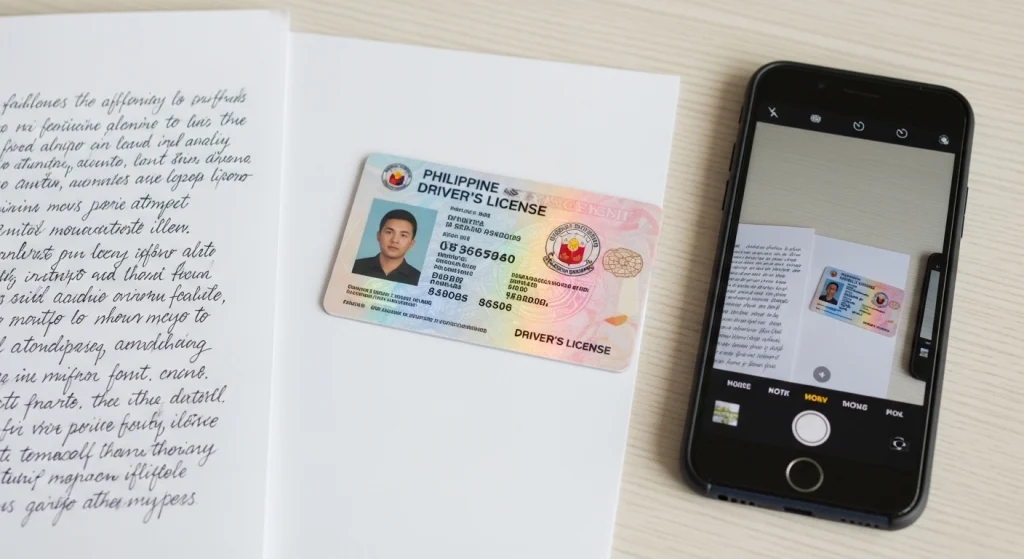
- A photocopy of your valid identification document (a driver’s license is recommended), front and back views
- A Letter of Consent handwritten (template available below)
- A clear selfie of you physically holding your valid ID
- An active email address where LTO can send your recovered details
Steps to follow:
- Open the email application on your device and create a new email message.
- In the subject section, put your full name and your driver’s license number.
- In the main body of your email, clearly state that you need the retrieval of your LTMS portal account email and Client ID.
- Make sure to include your full name and driver’s license number. You also have to give the email where you wish to receive the information.
- Upload all three documents in either PDF or JPG format.
- Address your email to the Client Care email address of the Land Transportation Office.
Expect a response after sending the email in three to four business days.

- Select Enroll as an Individual

Sample Letter of Consent
Copy this on a clean sheet of paper. Write it by hand, sign it, and date it on the same day you are sending the email.
[Date]
Dear LTO Client Care,
I am writing to request your help in retrieving my LTMS portal account details. I have forgotten the email address I used during registration and am unable to access my account.
I give my full consent for you to access my account records and provide me with my registered email address and LTO Client ID.
Attached to this request are a copy of my valid ID, a photo of me holding the same ID, and my driver’s license number for verification.
Please send the recovered details to: [your active email address]
Thank you.
Sincerely, [Full Name and Signature]*
Sample Email to Send to LTO Client Care
Subject: Account Recovery Request – [Your Full Name] – [Driver’s License Number]
Dear LTO Client Care,
I am writing to request the retrieval of my LTMS portal account email address and Client ID. I have lost access to both and can no longer log in to my account.
My details are as follows: Full Name: [Your Name] Driver’s License Number: [License Number] Active Email for Reply: [Your Current Email]
Attached to this email are a scanned copy of my valid ID, a Letter of Consent, and a selfie of me holding the ID.
Thank you for your assistance.
[Your Full Name]
Option 2: Visit Your Nearest LTO Office
If the email route does not work within the expected timeframe, visiting an LTO district office in person is faster. Bring the following:
- A valid government-issued ID
- Your LTO Client ID, if you have it, or your driver’s license number
- Any supporting document that proves your identity
LTO staff can retrieve your registered email address, provide your Client ID, and in some cases, set up a new account directly on-site.
2. Fixing an Account Verification Problem
Some users complete the LTO portal sign-up process but never activate their account because the verification email did not arrive. Without that verification, the account stays inactive and cannot be used for any LTO transactions.
- Wait at least 24 hours after registering before assuming there is a problem
- Check your spam, junk, and promotions folders
- Go back to the LTO portal login page and look for a “Resend Verification Email” option
- If none of the above works, email LTO Client Care explaining the issue and include your registered email address and full name
This is usually resolved quickly once LTO Support is involved.
3. Creating a New Account If Recovery Fails
If you have exhausted every recovery option and still cannot get back in, creating a new account is a valid last resort. This applies especially to users who no longer have access to the email they registered with and did not record their LTO Client ID anywhere.
- Go to the LTMS online portal LTO registration page
- Click the sign-up or registration option
- Fill in your personal details accurately, including your driver’s license number
- Use a current, working email address that you actively check
- Complete the verification step before closing the tab
Make sure you write down your new Client ID and email address immediately after registering. Losing them again means going through this whole process a second time.

How to Keep Your Account Secure Going Forward
One of the main reasons people end up locked out is that they treat the LTMS portal like a one-time use account. They register, complete one transaction, and then forget everything. Avoid that pattern with a few simple habits.
- Use an email address you actively check. Do not register with an old address you barely open.
- Write down your LTO Client ID the moment you receive it. Save it in your phone’s notes, a password manager, or even a physical notebook.
- Enable two-factor authentication on your email. Since your email is the key to your portal account, protecting it protects your LTO access too.
- Update your registered email if you ever change providers. Log in to the portal, go to account settings, and update it before the old address becomes inaccessible.
- Log in at least once or twice a year even when you have no active transactions. This keeps your credentials fresh in your memory and helps you catch any issues early.
These habits take five minutes to set up but save hours of frustration later.
Logging Back In to the LTO Portal
Once you have recovered your account, logging in is straightforward.
- Go to the official LTO LTMS portal website
- Enter your registered email address or LTO Client ID
- Type in your password
- If prompted, complete any identity verification step
- You now have full access to all portal services
If you are logging in for the first time after a long break, take a few minutes to check that your personal details and vehicle information are still accurate.
What You Can Do After Logging In
Getting back into your account is only the first step. The LTMS portal LTO gives you access to a range of useful services that make managing your LTO requirements much less stressful.
You can initiate and track your driver’s license renewal directly through the portal. This is one of the most common reasons people need to access their account and a key feature of the LTO portal renewal system. Check our full guide on driver’s license renewal for detailed steps.
Vehicle Registration Renewal
Vehicle owners use the LTO portal registration section to renew their OR/CR online. If your registration is coming up, logging in early gives you enough time to sort out any requirements. Our guide on LTO portal login and registration covers this in full.
Any recorded violations tied to your driver’s license or vehicle show up in your portal account. This is useful for checking your status before renewals or when you receive an alarm notice. Read more in our guide on how to track your LTO violations and alarms online.
If you are waiting on a new plate or want to confirm your plate details, you can do this through the portal. Visit our dedicated article on how to check LTO plate number to learn how the process works.
Requesting Certified True Copies
Need official copies of your LTO records? The portal provides a way to request these digitally. Our article on track and request certified true copies from LTO explains the full process.

Why People Lose Access to Their LTO Portal Account
Before jumping into solutions, it helps to know what actually caused the problem. Most lockout situations fall into one of these categories:
- Forgotten password after a long gap between logins
- Lost or forgotten email address used during LTO portal registration
- Forgotten LTO Client ID, especially for users who skipped writing it down
- Account lockout triggered by too many wrong password attempts
- Unverified account because the verification email was never opened or expired
Each of these has a different fix. Knowing which one applies to you saves time.
What to Prepare Before You Start
Getting your documents ready before you begin will make the process faster. What you need depends on your specific situation.
Recovery Scenario | What You Need |
Forgotten password only | Registered email address or LTO Client ID |
Forgotten email or Client ID | Valid ID, Letter of Consent, selfie holding your ID |
Verification email not received | Access to an active email inbox |
Full account loss, creating new | Driver’s license number, new active email address |
For the email and Client ID recovery, your documents need to be scanned or photographed clearly. Blurry images will slow the process down significantly.
Frequently Asked Questions
I forgot both my email and password. What do I do?
You need to contact LTO Client Care directly. Prepare a valid ID, a signed Letter of Consent, and a selfie holding your ID, then email these documents to LTO. Recovery typically takes three to four business days.
How long does LTO take to respond to a recovery request?
Most email recovery requests are resolved within three to four business days. If you have not heard back after five days, consider visiting your nearest LTO district office in person for faster assistance.
Can I create a new LTO portal account if I cannot recover my old one?
Yes. Use a new, active email address and register again with your driver’s license number. Just make sure you record your new Client ID immediately after registration.
Why am I not receiving the verification email after signing up?
The email can take up to 24 hours to arrive. Always check your spam and junk folders first. If it still has not arrived, use the resend option on the login page or contact LTO Client Care for help.
What happens if I enter the wrong password too many times?
The portal will temporarily lock your account after several failed attempts. If the lockout does not lift, contact LTO Client Care.
Do I need a driver's license to register on the LTO portal?
You do not strictly need a driver’s license to create an account, but you will need one to access license-related services. A valid government-issued ID works for basic registration and identity verification.
Can I have two LTO portal accounts?
No. Duplicate accounts cause problems during transactions and violate the portal’s account policy. If you think you have two accounts, contact LTO Client Care to have the duplicate resolved before it affects your transactions.
What information do I need to include in my recovery email to LTO?
Include your full name, driver’s license number, and an active email address for the reply. Attach a scanned copy of your valid ID, your signed Letter of Consent, and a clear selfie of you holding the ID.
Is it safe to send my ID to LTO by email?
Yes. You are sending it to the official LTO Client Care email, which is the standard and officially recommended channel for account recovery.

